Projection mapping
Live performance
Blender
After effects
Madmapper
Details
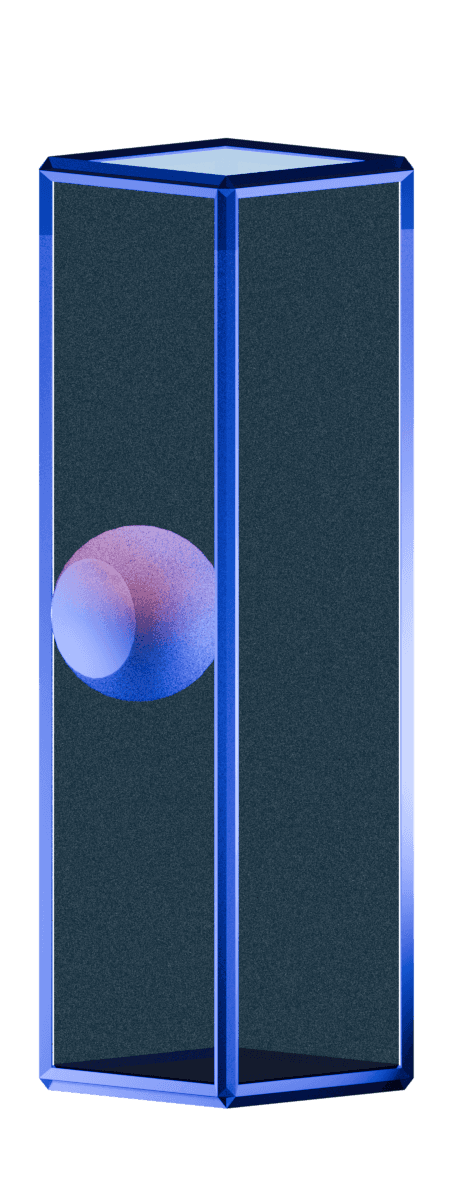
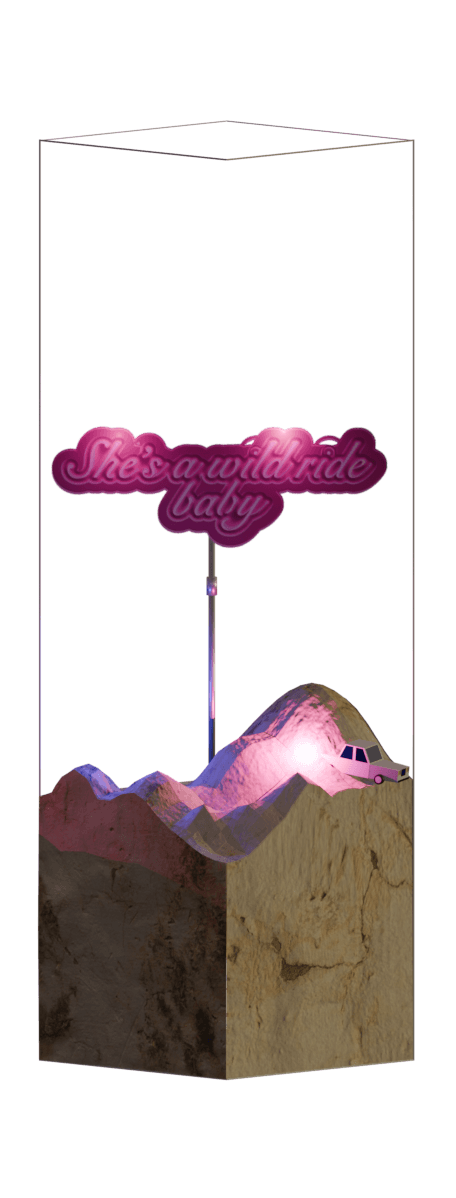
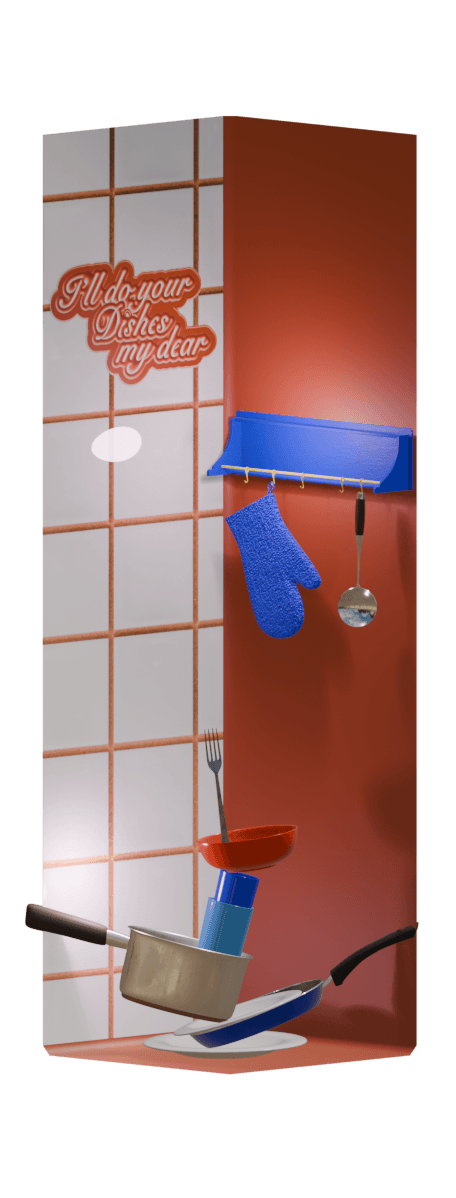
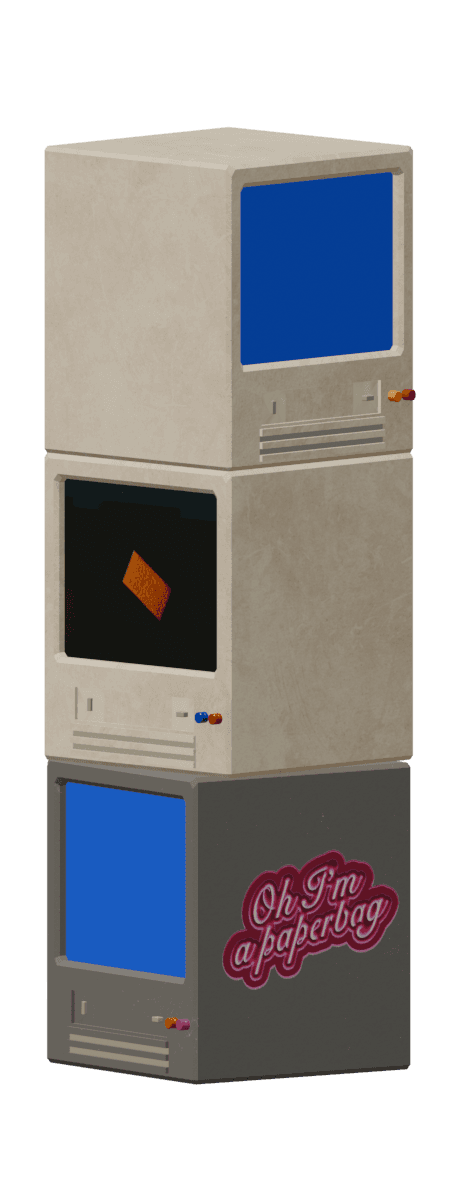
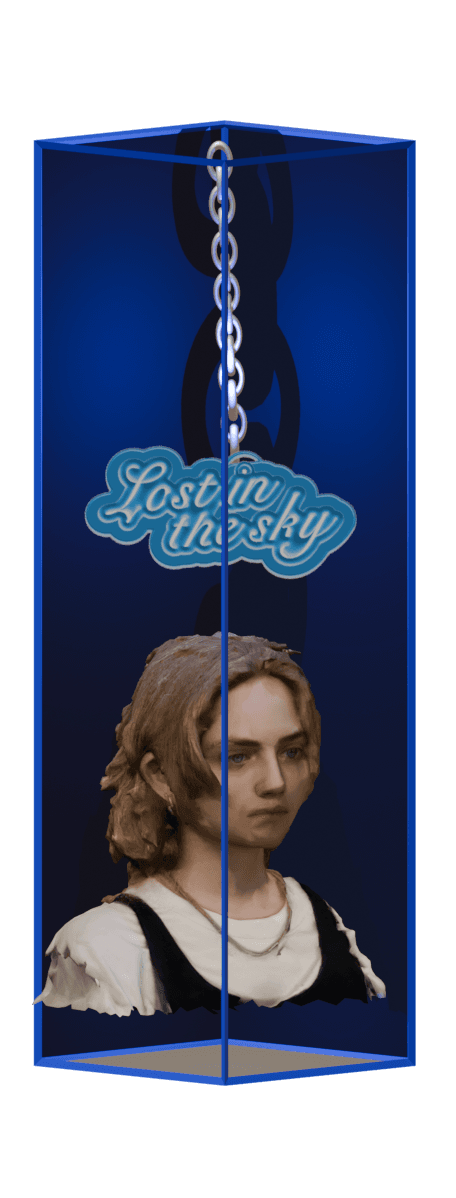
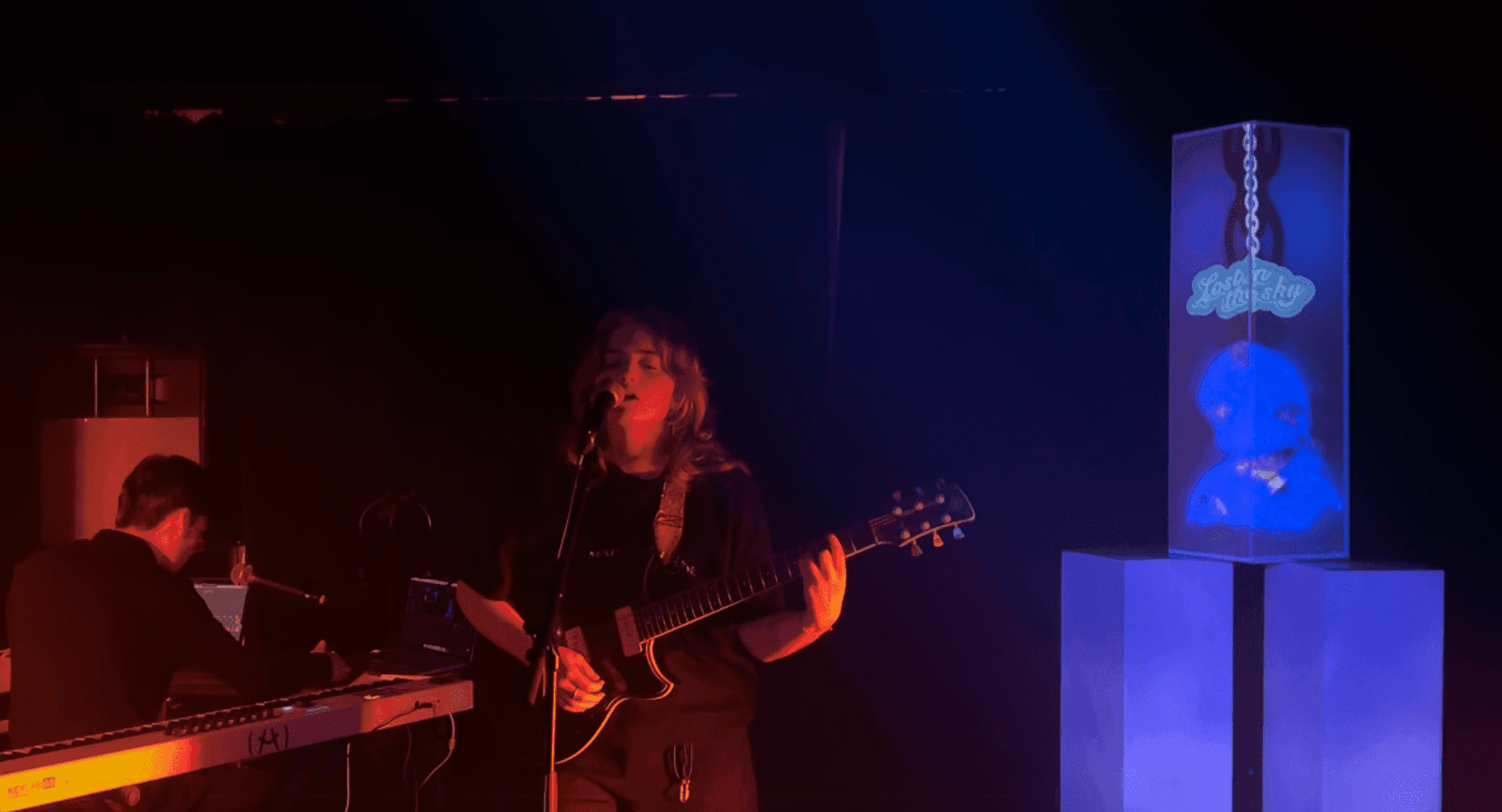
During a live-residence in Ghent, I explored the art of projection mapping and combining it to create next-level live performances (*img 1).
The drive: Next to designing, I deeply enjoy making music and performing. I wanted to create a live performance where my visuals and songs come together as one coherent show a way to fully pull the audience into my world. On top of that, I set myself an extra challenge: the entire setup had to be reusable, transportable, and as close to plug-and-play as possible.
The journey:
I quickly chose projection mapping as the main tool for this installation. The way it can trick your brain (and the sheer amount of things you can do with it) is honestly mind-blowing.
I got heavily inspired by the 3D projection mapping installation “FORMATS” on YouTube. For the actual mapping, I used MadMapper, which I rented for a month. I chose it mainly because it has great documentation and a lot of tutorials, which made the learning curve manageable.
For the visuals:
Blender → creating the 3D, perspective-tricking animations
After Effects → adding extra effects and doing the final distortion work
The setup:
My live set consists of 7 songs.
I used 3 pillars, which meant 21 individual animations had to be created (yes, I am pretty tired while writing this blog post.)
Because of the tight deadline, I didn’t have the luxury of designing the most efficient pipeline beforehand. I mostly just went for it, hit walls, fell flat on my face, and tried to learn as much as possible along the way, kinda how I live life in general.
How I did 3D projection mapping:
Below is the workflow that worked for me. I’m not claiming this is the best or only way, just the way I managed to make it work under time pressure.
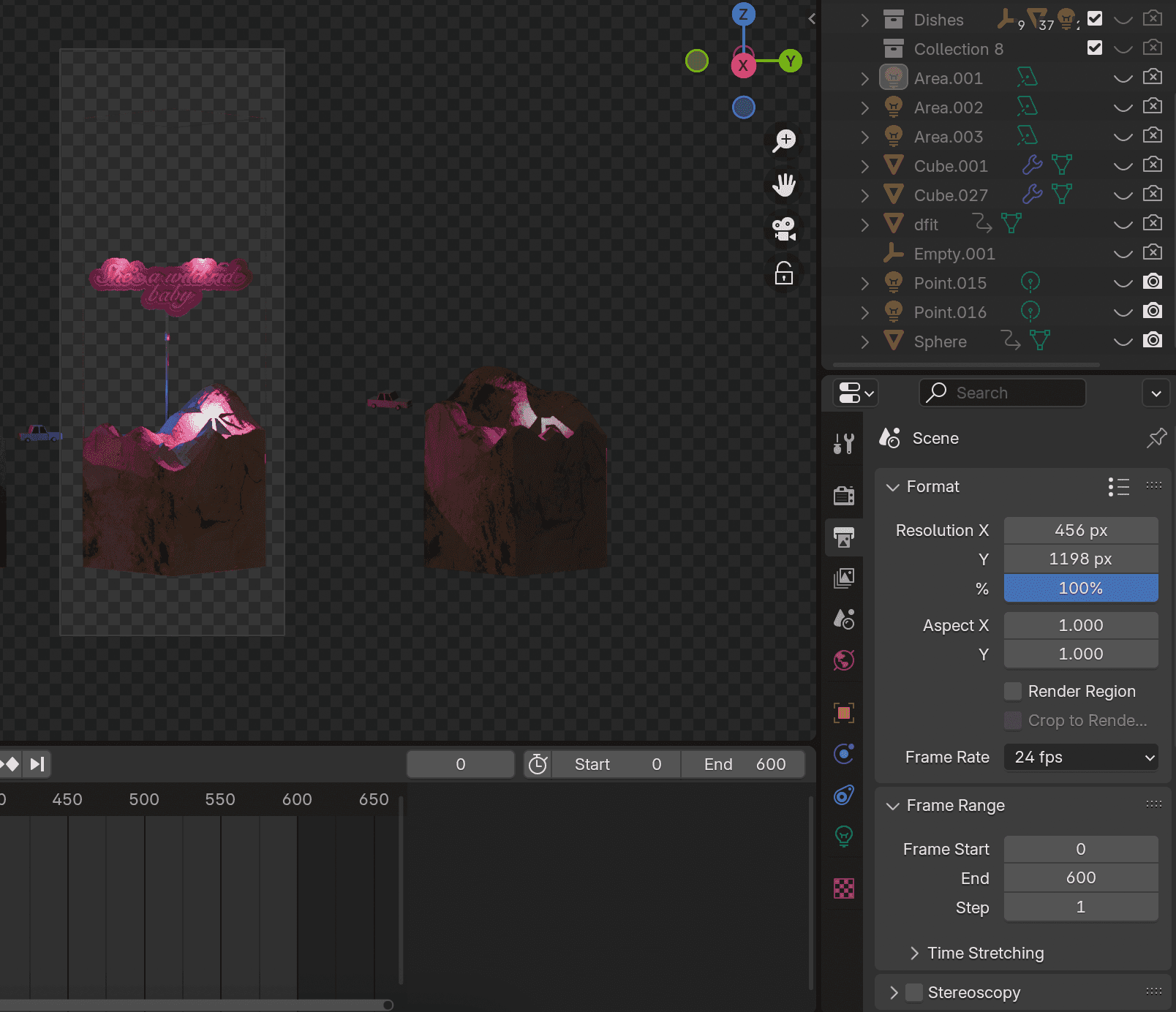
Blender: setting up your object (*img 2)
Object
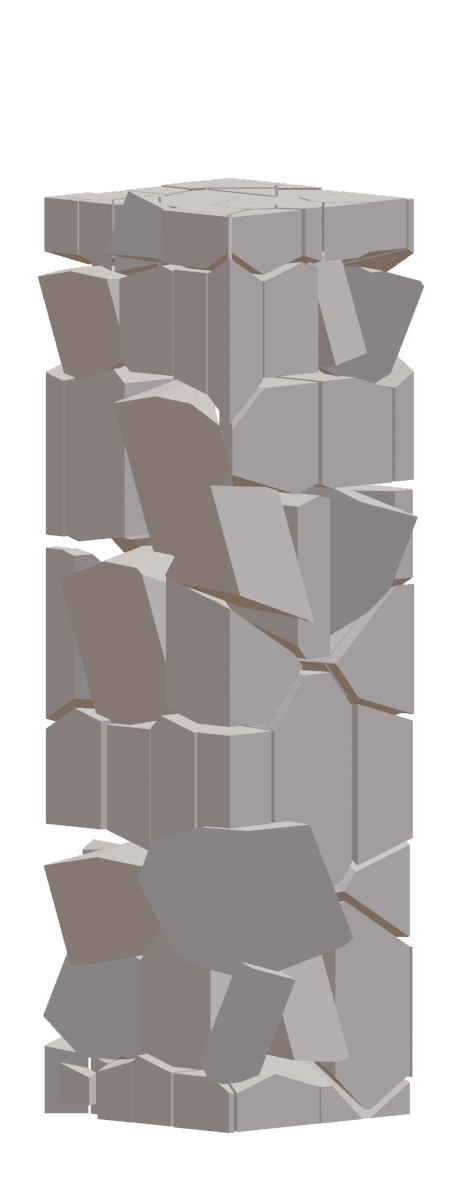
Recreate the object you’re projecting onto with the exact same dimensions. I strongly recommend keeping it simple. A cube or pillar is already incredibly powerful.
Camera
I placed my camera in orthographic view and tried to align the projector angle as closely as possible to an orthographic view.
That said: I don’t think orthographic view was strictly necessary in my case. I only projected onto the sides of the cube, not the top. Partly because of time constraints, and partly because I honestly couldn’t fully figure out the After Effects workflow for mapping the top surface.
Rendering the animation
I rendered the animation from the camera view only. I experimented with rendering different sides from different angles, but that turned out to be unnecessary. One clean render from the camera view is enough.
Before moving into After Effects, make sure you:
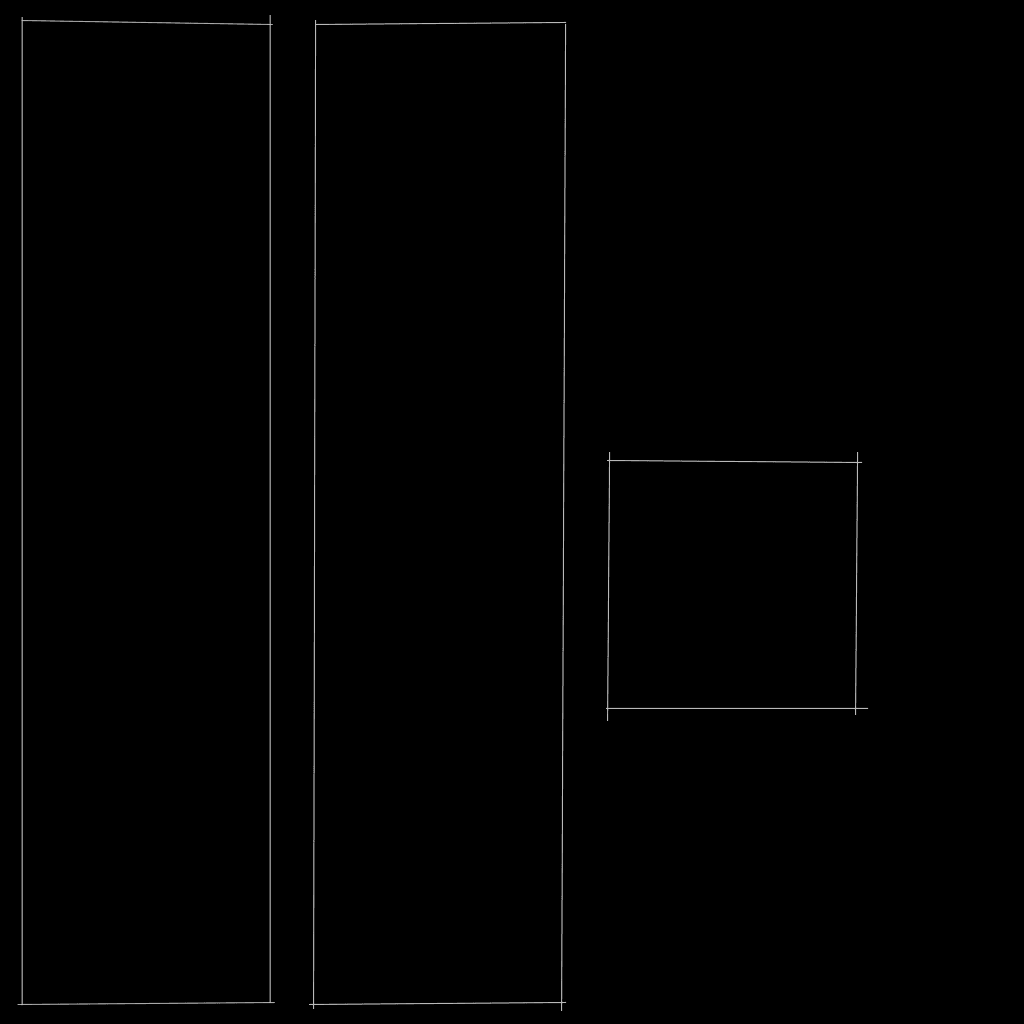
Unwrap your cube
Export a template PNG (*img 3) of the unwrapped cube
You’ll need this later to align everything correctly in After Effects.
After Effects: editing and distortion
In After Effects, I imported my PNG sequence and did all the animation edits I wanted.
Some things I used (*img 4):
Overall bright blue noise effects
Rotoscoping specific parts of the animation
The biggest epiphany
This was the moment where things finally clicked:
You can’t just import your Blender render into MadMapper and expect it to work — not when you’re using 3D.
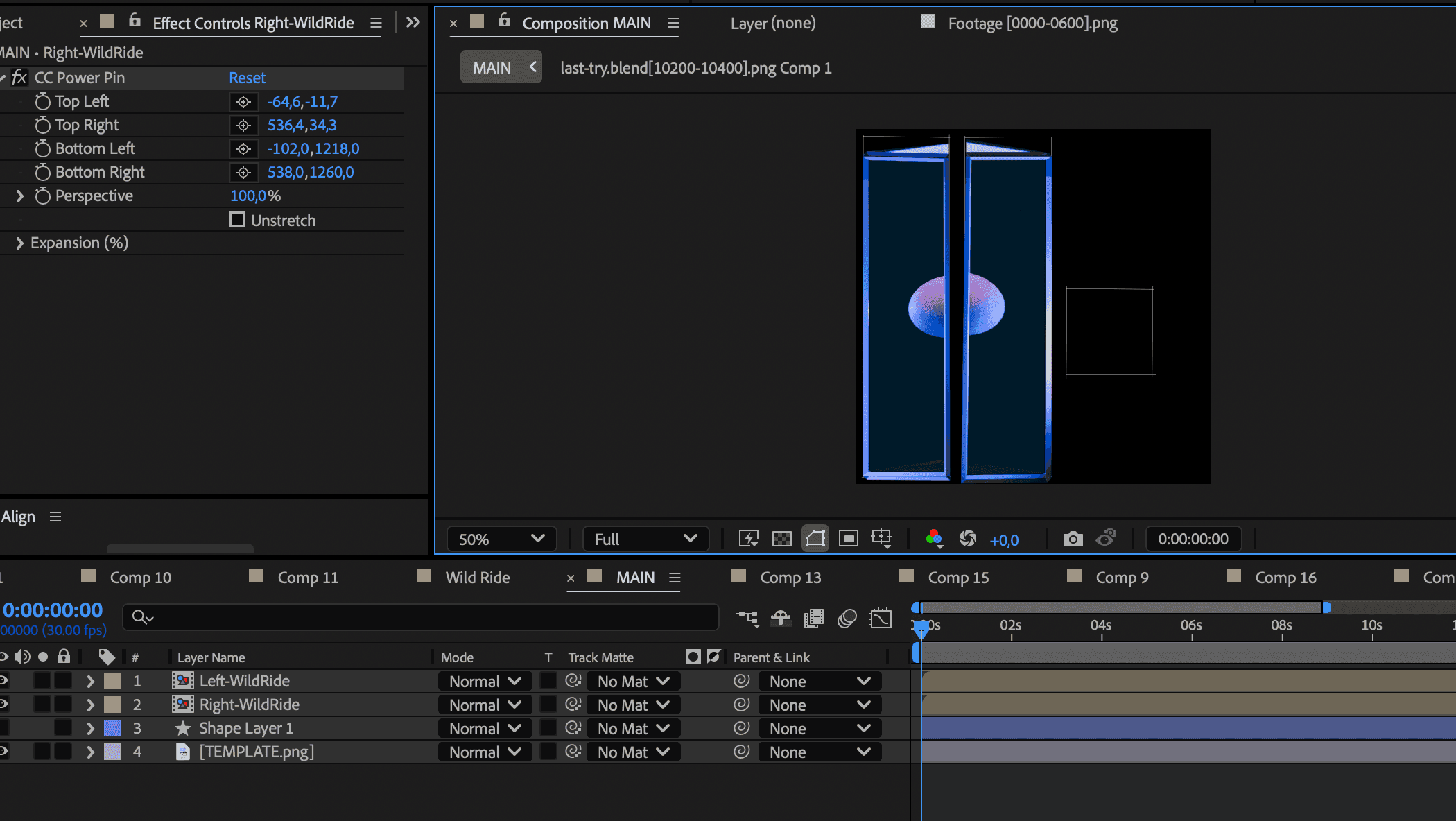
Instead, you need to (*img 5):
Mask out the left and right sides of your cube into two separate compositions
Use the Power Pin tool to deform each side back into a flat rectangle
This is where your unwrapped cube template becomes crucial. It helps you make sure your compositions fit perfectly within those rectangles.
Once both sides are correctly skewed, render them out as MP4 files.
MadMapper: bringing it all together
From here, MadMapper is surprisingly straightforward. There are plenty of tutorials showing how to connect your projector output (it’s basically a one-click setup.)
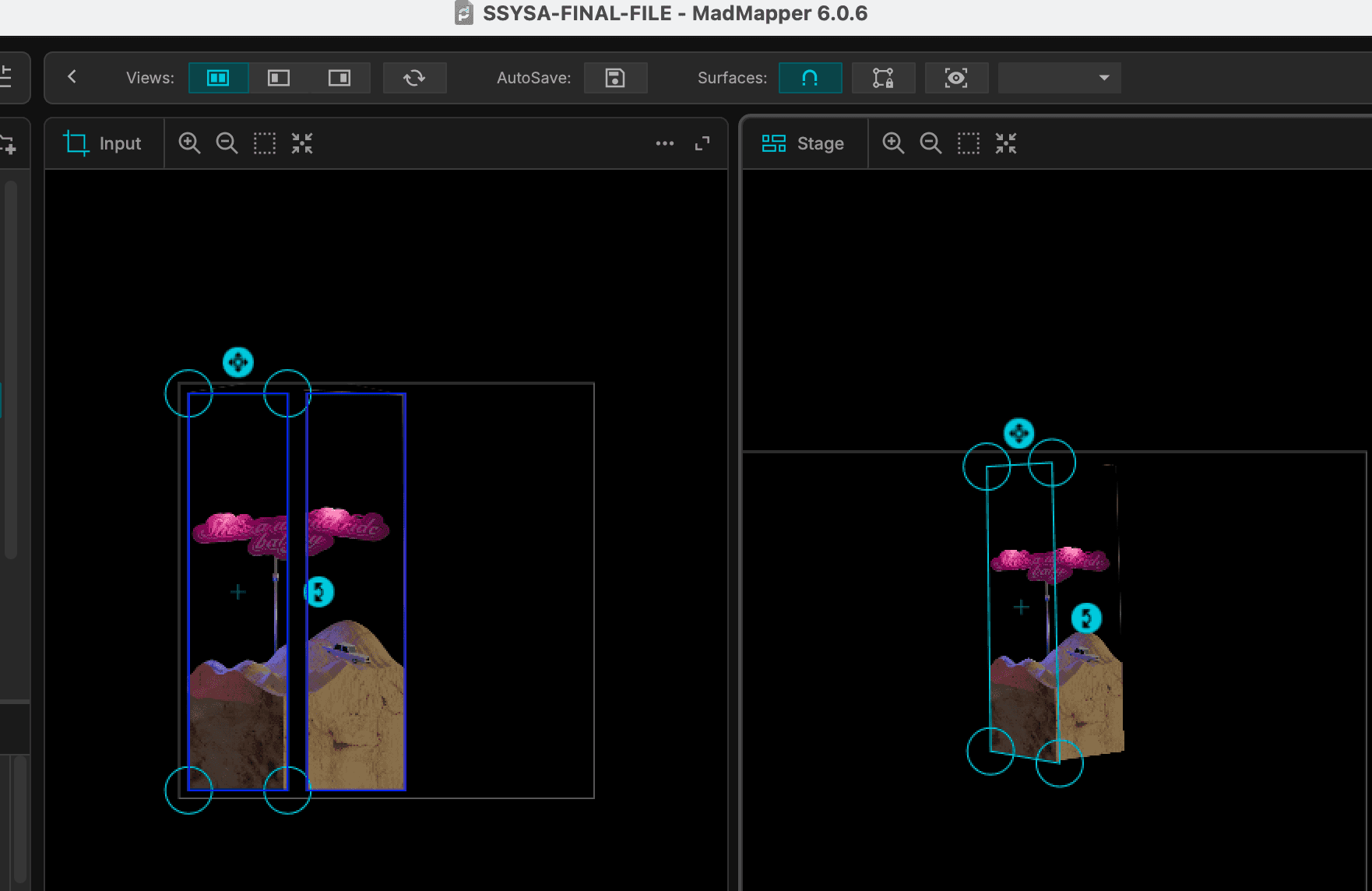
Inside MadMapper (*img 6):
You map your cube using the grid
You load your video into the Media panel
On the left, you see your unwrapped animation
On the right, you see the physical object you’re mapping onto
The core idea (in short)
This was the hardest thing for me to wrap my head around:
You render your animation in Blender
You unwrap it and distort it in After Effects
When you map it in MadMapper, the perspective is fixed again
It feels counter-intuitive at first, but once it clicks, everything starts to make sense.
Final thoughts
I honestly don’t know if this is the most optimal workflow. I can imagine there’s a way to skip After Effects entirely and handle the distortion inside MadMapper, but I haven’t found it yet.
That said, if you’re already adding effects in After Effects, the extra Power Pin step really isn’t that painful. And once you’ve done it a few times, it becomes pretty fast.
Most importantly: it works, and it allowed me to build a reusable, transportable live show where my music and visuals feel like one.
*Img 1
*Img 2
*Img 3
*Img 4
*Img 5
*Img 6